Build an MQL5 Expert Advisor from Scratch, Part 2: Compile and Backtest Without a Click
Compile an EA with metaeditor64.exe and run the Strategy Tester from an INI file: a ten-second run instead of ten minutes of manual setup, with the pitfalls we encountered.
In the first part, we covered an EA's structure and how to calculate position size from the distance to the stop loss. Now for something rarely covered in Russian-language guides: testing ideas without opening MetaEditor and the Strategy Tester with your mouse.
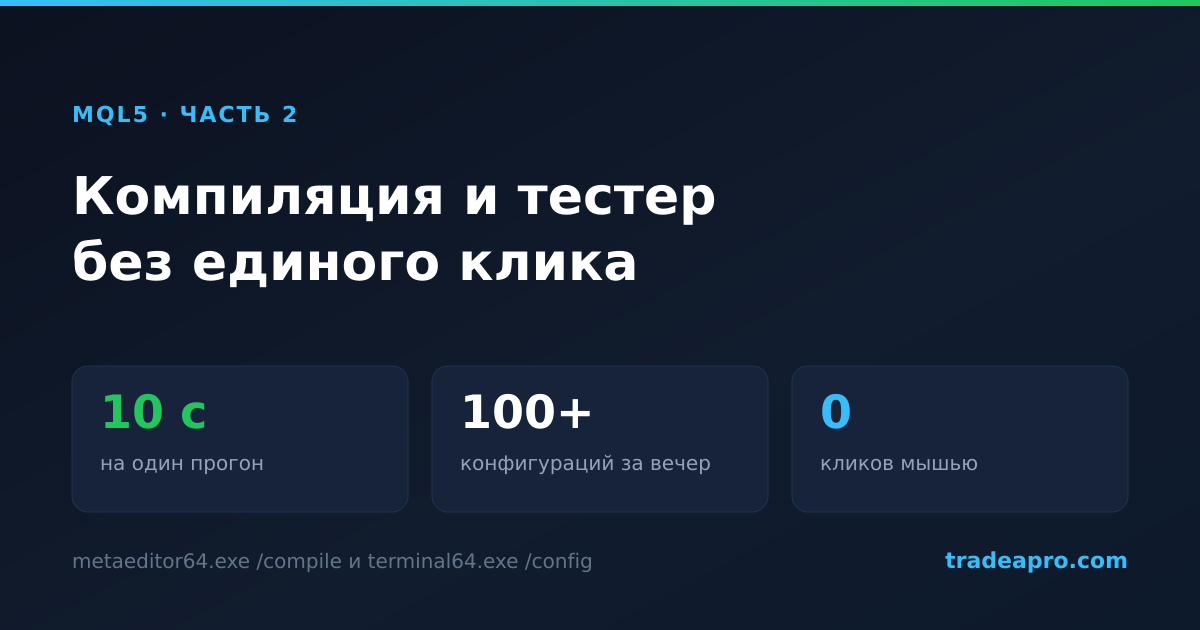
The difference is substantial. The manual cycle—open the editor, press F7, switch to the terminal, open the tester, set the symbol, timeframe, dates and inputs, click Start, wait and inspect the report—takes about ten minutes and demands your attention. The same run from the command line takes around ten seconds and needs no intervention. That is how we were able to try more than a hundred EA configurations in one evening; nobody would work through that many manually.
Compile from the command line
The compiler is metaeditor64.exe in the terminal folder. It can build a file without opening its interface:
"C:\Program Files\XM Global MT5\metaeditor64.exe" /compile:"...\MQL5\Experts\MyEA.mq5" /log:"%TEMP%\compile.log"
There are three things worth knowing from the outset.
The source file must be inside the terminal's data folder. Not in your project folder, but in MQL5\Experts under the directory the terminal uses for its data. Otherwise, the compiler will fail to find the standard headers and report “Trade.mqh not found,” even though the file is there. We hit this ourselves. Either put the source in the data folder—as we do, copying it before each build—or add the /portable switch if the terminal runs in portable mode.
The log uses UTF-16. Reading it with the default encoding produces a mess of null characters. In PowerShell, specify the encoding explicitly:
$result = Get-Content $log -Encoding Unicode | Select-String 'Result' | Select-Object -Last 1
if ($result -notmatch '0 errors') { throw "Build failed: $result" }
The exit code is not always useful. It is more reliable to parse the log's Result: 0 errors, 0 warnings line, as above, and stop the run if the build fails. Otherwise, the tester will run the previous, outdated .ex5 file—and you will spend half a day trying to explain a result produced by code you have already changed.
Run the tester with an INI configuration
The terminal accepts the /config:path.ini switch. If the configuration contains a [Tester] section, it starts directly in testing mode. Here is a minimal working configuration:
[Tester]
Expert=TradeaproRangeBreakout
Symbol=GOLD#
Period=M15
Model=1
Optimization=0
FromDate=2025.01.01
ToDate=2025.12.31
Deposit=10000
Currency=USD
Leverage=1:100
Report=C:\Temp\report
ReplaceReport=1
ShutdownTerminal=1
Visual=0
The crucial settings are in the final two pairs of lines. Visual=0 disables visualization, and ShutdownTerminal=1 closes the terminal when the run finishes. Without the latter, your script will wait indefinitely, leaving you unsure whether the test has ended. Model=1 uses open prices; for a strategy that acts on closed candles, this is sufficient and several times faster than “Every tick.”
Editor's note: The original example retains
Model=1, but MetaTrader 5 defines this as "1 minute OHLC"; "Open price only" usesModel=2. The source's description above therefore does not match its configuration. See the official MetaTrader 5 configuration reference.
EA inputs go in a separate section, using the same names as the code's input variables:
[TesterInputs]
RewardRatio=3.0
BreakevenAtR=1.5
MinRangePct=0.15
Save the file in UTF-16 (-Encoding Unicode in PowerShell). With UTF-8, the terminal silently ignores the configuration and opens its normal window. There is no error; nothing happens.
Where to get the results
The biggest surprise when running without a visible window is that the HTML report—the reason for setting this up in the first place—often is not created at all. You cannot rely on it.
A working approach is to calculate metrics inside the EA itself and print them in OnDeinit, which is called at the end of the run:
void OnDeinit(const int reason)
{
   double balance  = AccountInfoDouble(ACCOUNT_BALANCE);
   double winrate  = trades > 0 ? 100.0 * wins / trades : 0;
   double pf       = grossLoss > 0 ? grossProfit / grossLoss : 0;

   PrintFormat("[RESULT] balance=%.2f trades=%d winrate=%.1f PF=%.2f maxDD=%.1f",
               balance, trades, winrate, pf, maxDrawdownPct);
}
The output goes to the testing agent's log:
%APPDATA%\MetaQuotes\Tester\<ID>\Agent-127.0.0.1-3000\logs\<date>.log
Your script can extract the result from there in a single line. It also helps to print the reasons for skipping entries—[SKIP] spread, [SKIP] range, [SKIP] lot—and group them:
$skips = $txt | Select-String '\[SKIP\] (\w+)' -AllMatches |
  ForEach-Object { $_.Matches[0].Groups[1].Value } | Group-Object | Sort-Object Count -Desc
This is what saved us when the EA's first version made no trades over four years. The report was empty, but the log showed that the range filter had rejected every single day. Without that output, finding the cause would have been guesswork.
Pitfalls we encountered
The terminal closed after four seconds without doing anything. It was installing an update. The first launch after an update is something you simply need to handle manually.
A three-month test took nine minutes instead of ten seconds. The terminal was logged into an account whose access had expired, and it kept waiting for the server to synchronize history. Testing needs a terminal with an active account. Any demo account will do; it does not change the historical data.
On brokers: test a strategy with at least two. Spreads, quote precision and even instrument names vary. One broker calls gold GOLD#, another XAUUSD, and our EA produced a profit factor of 1.41 on the second feed versus 1.33 on the first. We ran tests on XM and cross-checked them on RoboForex; opening a demo account takes a couple of minutes, and quote history is available immediately.
Do not edit terminal.ini or terminal templates by hand. We “tidied up” the configuration and cleared the login fields; the terminal stopped launching altogether. Everything the tester needs can be supplied in a separate INI file through /config. There is no need to alter the terminal configuration.
One run, one terminal. Close the previous process before starting (Stop-Process -Name terminal64), or the new launch may pick up another run's configuration. To run tests in parallel, install several terminal copies with separate data folders. Each copy uses around a gigabyte of memory, so a work laptop with four gigabytes will not handle more than two simultaneous runs.
Once you have found a configuration and moved the EA onto an account, your testing machine is no longer suitable: the terminal needs to run around the clock, regardless of whether you close your laptop lid. We keep our trading terminals on a VPS close to the broker's server. Single-digit millisecond latency makes a noticeable difference for a breakout strategy because entry occurs precisely when price moves beyond the range boundary.
What this gives you
The complete script—build, configuration, launch and log parsing—fits into about a hundred lines of PowerShell and runs like this:
.\run-test.ps1 -Symbol GOLD# -From 2025.01.01 -To 2025.12.31 -Inputs @{ RewardRatio = 3; BreakevenAtR = 1.5 }
Wrap it in a loop over the parameters, and you get a table rather than an opinion about the strategy. We tested our EA across a parameter grid for 2022–2024, then checked the best configuration on 2025–2026, which had not been used for selection: a profit factor of 1.33, a drawdown of 3.9% and 145 trades in the validation period.
The most valuable part of that table is not the peak but its surroundings. If nearby parameter combinations produce similar results, you have a plateau, and the setting probably reflects a market characteristic. If a single peak stands alone among losing neighbors, it is curve fitting, and little of it will survive on a live account. You cannot see that difference through manual trial and error, simply because nobody will do a hundred runs by hand.
The EA used for these tests is in the catalog with its source code, and its trades on our demo account are visible in live monitoring.
The third part will cover how to distinguish a viable strategy from a fitted one: forward testing, splitting the data and why an attractive backtest means very little on its own.
The broker and VPS links in this article are affiliate links: if you register through them, we receive a commission, while you get the same terms as through a direct link. We only mention services we use ourselves.
Share this article:
Comments (0)
No comments yet
Be the first to leave a comment!