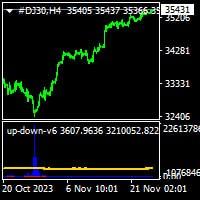
Up Down v6 fixed
IndicatorSign in to download
One-tap sign-in with Telegram, no email or password. After signing in we bring you back to this page.
Sign in with Telegram and downloadDescription and specifications
Information about the expert advisor and its source. Results claimed by authors, sellers or channels are not treated as verified by TradEApro; our own checks and their limitations are identified separately.
🌐 Up Down v6 V12.0 MT4 expert advisor (EA) — indicator with source code 👑
👉 More about the expert advisor (EA): https://www.mql5.com/ru/market/product/108818
👉 Link from the original post: https://www.mql5.com/en/market/product/108818
⭐️ Up Down v6 is an indicator for MetaTrader 4 that uses a mathematical approach to identify price tops and bottoms. According to the developer, its signals do not repaint, appear infrequently and are intended for extended price moves.
💎 Key features:
✅ Works on all currency pairs and timeframes, including one-minute M1 charts.
✅ The original post presents version V12.0 with source code; the developer’s description also lists changes in versions 13, 13.1 and 14.
✅ Version 13 introduced the wave parameter with an adjustable range of 200–500. Signals may differ when wave is set to 200.
✅ Version 13.1 added the ability to modify the histogram and signal line.
✅ Version 14 uses EMA, which, according to the developer’s description, makes signals visible even on the monthly chart.
📊 How to read the signals:
✅ The developer calls a crossing of the signal line by the red histogram an “up” signal, while indicating a likely price decline.
✅ The developer calls a crossing of the signal line by the blue histogram a “down” signal, while indicating a likely price rise.
✅ These signal names match the original description: their labels indicate the opposite direction to the expected price movement.
✅ Signals may appear on different timeframes, such as H4 or M15. The developer recommends considering each signal on the timeframe where it appears.
⚙️ Setup and use:
✅ The default value of the c parameter is 2,7. You can increase or decrease it to adjust the signals for a specific currency pair and chart.
✅ Adjust c on the daily D1 chart or on H4 so that signals are visible at price tops and bottoms. Then use the same c value for the selected pair on other timeframes.
✅ If signals are not visible, click the “+” button in the trading terminal to zoom in on the chart.
✅ The developer states that a date must be used for demo mode; the original description does not specify the date or how to set it.
Where this file comes from
We are not the developers of this expert advisor. Catalog files come from public sources, including Telegram channels and developers’ official repositories. See the description for this file’s source and redistribution terms. All rights to the program remain with its author.
Are you the copyright holder and want the file removed? Contact us — we remove it on the first request.
Screenshots (3)
Sign in to download
One-tap sign-in with Telegram, no email or password. After signing in we bring you back to this page.
Sign in with Telegram and downloadShare:
How to use
1.Download the file
2.Open MetaTrader 4 or MetaTrader 5
3.Put .ex4/.ex5 files into the MQL4/Experts or MQL5/Experts
4.Restart the terminal and the file will appear in the Navigator
Frequently asked questions
How do I install an expert advisor in MetaTrader?
1. Download the expert advisor file (.ex4 or .ex5)
2. Open MetaTrader and go to File → Open Data Folder
3. Go to MQL4/Experts (for MT4) or MQL5/Experts (for MT5)
4. Copy the expert advisor file into that folder
5. Restart MetaTrader
6. The expert advisor will appear in Navigator → Expert Advisors
Why is the expert advisor not trading?
Check the following:
• The "Algo Trading" button is enabled (green)
• Trading is allowed in the expert advisor settings
• The terminal is connected to the broker server
• There are enough funds on the account
• The right symbol and timeframe are selected
Can I use it on a live account?
We recommend testing the expert advisor first:
1. In the strategy tester on historical data
2. On a demo account in real time for at least 1–2 weeks
3. Move to a live account only after successful tests
⚠️ Forex trading involves a risk of losing capital
The file does not open or shows an error
Possible reasons:
• .ex4 files are for MT4 only, .ex5 files are for MT5 only
• The file was damaged while downloading — try downloading it again
• MetaTrader is outdated — update the terminal
• If the file is in an archive (.zip, .rar), unpack it first
Loading reviews...